How to Add Your Own XSD Schema in XML Workspace
To start working with datasets in Latitude App XML Workspace you need first to upload the XML Schema. The schema defines the fields and syntax of the xml you are trying to work with.
Follow the instructions below to upload your own Schema in Latitude App.
If you want to work with a schema that is not uploaded in our Schema Library, you can import it yourself in the application.
This video requires accepting functional cookies.
1. Download the schema you need
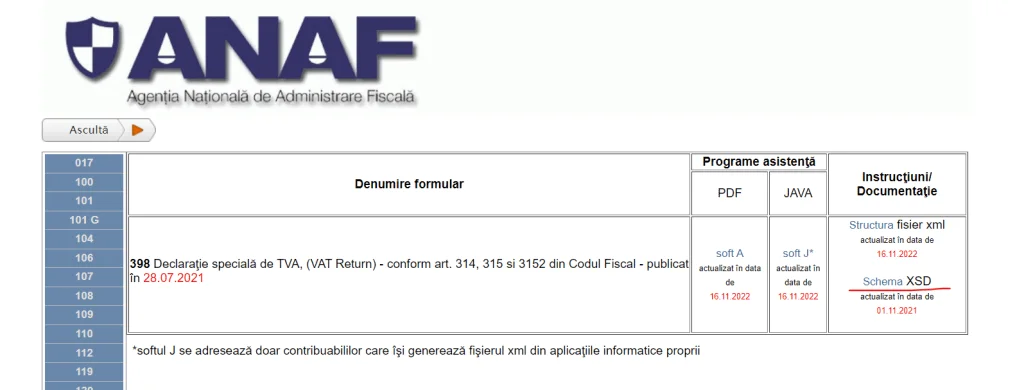
To upload your own schema first you need to have the schema available. For example, if you are interested in a schema for a tax return, you need to download the schema from the tax authority that published it.
If you consider the schemas published by the Romanian tax authorities, they can be downloaded from the official ANAF site as you can see in the screenshot on the right.
2. Open XML Workspace
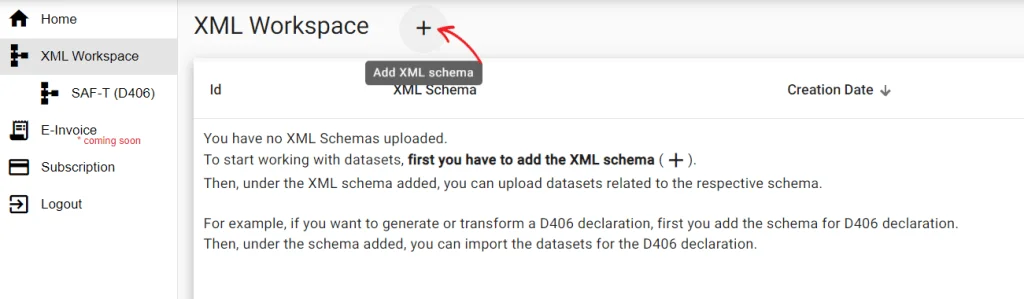
To add your own XML Schema go to XML Workspace. If you have no schemas added you will see a message that there are no schemas uploaded.
To upload a schema press the plus button on the top of the screen.
3. Choose from Schema Library or upload your own
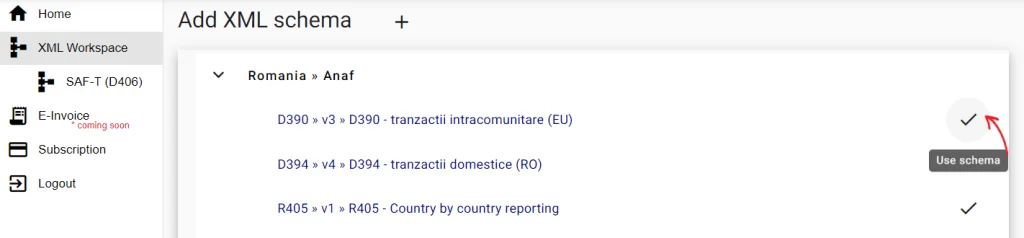
Now you can choose your schema from the ones already existing on the Schema Library, by pressing the check button on the right.
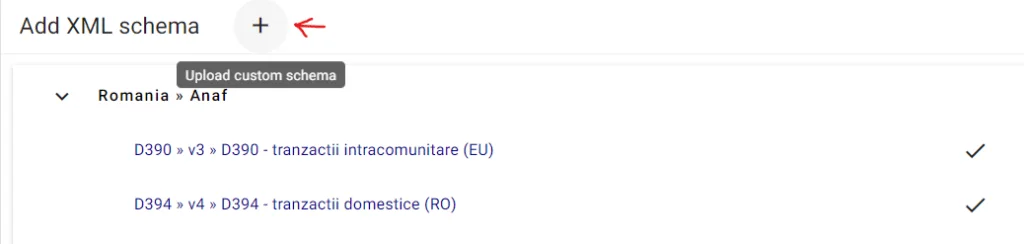
To upload your own schema press the plus button on the top of the screen (Upload custom schema) and then choose the schema downloaded from the tax authorities's site or any other schema that you have available. The schema file should have a ".xsd" extension.

4. Schema added successfully
Now the schema is added in the XML Workspace.
You will see also a message on the bottom of the screen saying that the XML schema was successfully added and also you will see some guidance on how to work under the schema. You can work with datasets, customize the schema if want to make changes to it, such as include some fields that are optional, or you can delete it.
The schema added is shown with a light green color in the XML Workspace area and from the Actions area in the right you can start working with datasets on this schema.
If you have any troubles with adding schemas on your XML Workspace please contact us at support@latitude-app.com.
Request a Demo
We present the application so you can understand how it works
We answer your specific questions about the application
We evaluate how our application can help your business